🛠️ How to Fix a WordPress Website Not Loading – Step-by-Step Guide
Is your WordPress website not loading? If your website suddenly stops loading, shows a blank screen, or displays a server error, it can be extremely frustrating.
Quick Answer: To fix a WordPress website not loading, disable plugins, switch themes, increase PHP memory, check your .htaccess file, and enable debug mode to identify errors.
Most WordPress website loading issues are caused by common problems like plugin conflicts, theme errors, server issues, or corrupted files.
In this guide, we’ll walk you through the most common reasons a WordPress site stops loading and show you how to fix the problem step-by-step.
Whether your website shows a blank page, an internal server error, or simply won’t load, these troubleshooting steps can help you restore your site quickly.
📑 In This Guide
- What it means when a WordPress website is not loading
- The most common causes of WordPress site errors
- Step-by-step troubleshooting methods
- When to contact a WordPress repair expert
Our WordPress experts can diagnose and repair broken websites, malware infections, plugin conflicts, and critical server errors.
Fix My WordPress Website Now →
⚠ What Does It Mean When a WordPress Website Is Not Loading?
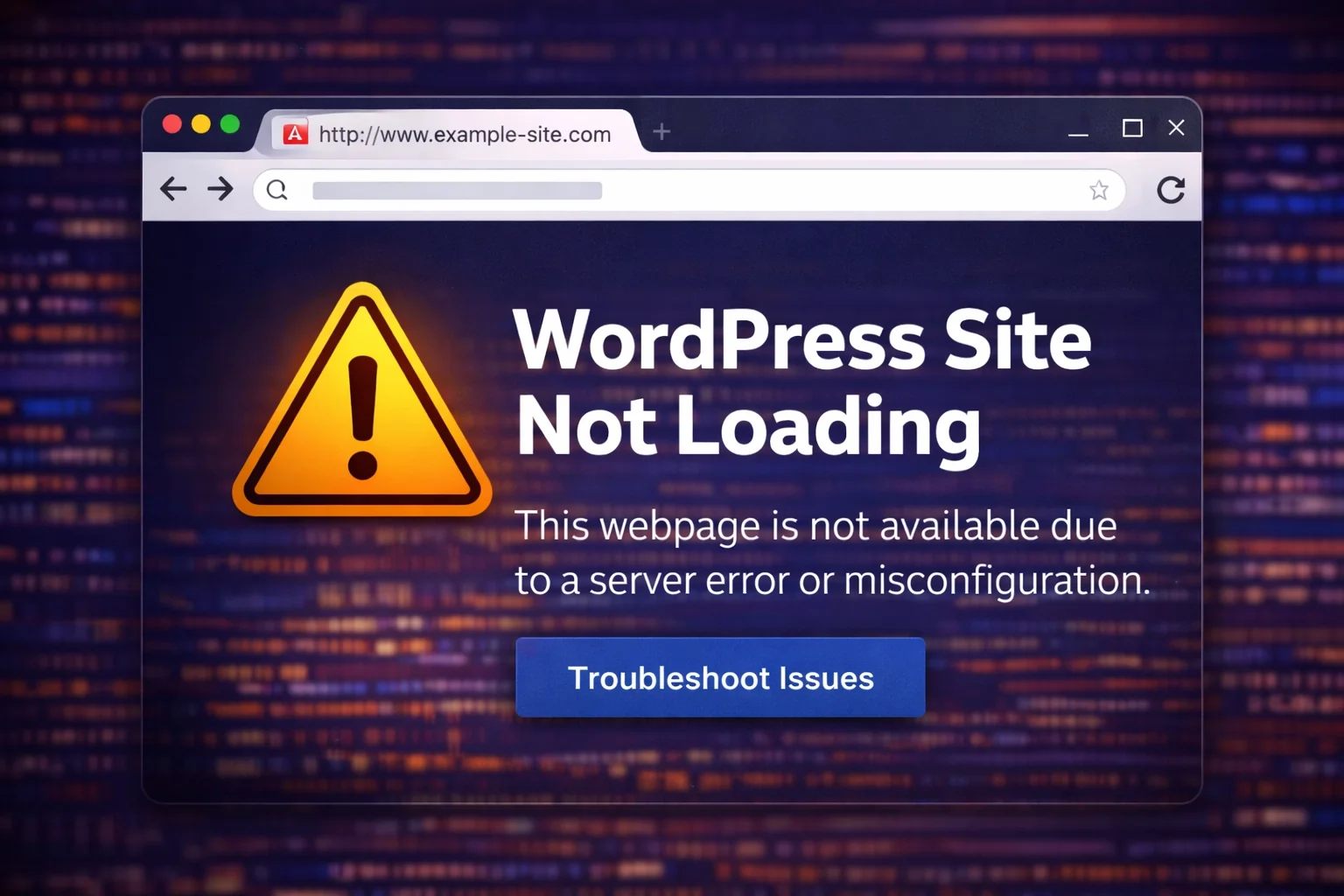
When a WordPress website fails to load, it usually means there is an error preventing the server from delivering the webpage to visitors.
This can happen for several reasons, including plugin conflicts, theme errors, server configuration issues, or corrupted files.
Many WordPress users experience issues such as:
- ⚠ Internal Server Error (500)
- ⚠ White Screen of Death
- ⚠ Website stuck loading
- ⚠ Error establishing database connection
If your issue is a blank screen, check our full guide on the WordPress White Screen of Death fix.
🔎 Common Causes of a WordPress Website Not Loading
Several problems can prevent your WordPress website from loading correctly.
- 🔌 Plugin conflicts
- 🎨 Theme compatibility issues
- 🧠 Low PHP memory limits
- ⚙ Corrupted WordPress files
- 🗂 Database errors
- 🦠 Malware infections
- 🌐 Server or hosting issues
🚀 Step-by-Step Fixes for a WordPress Website Not Loading
🔌 1. Disable All Plugins
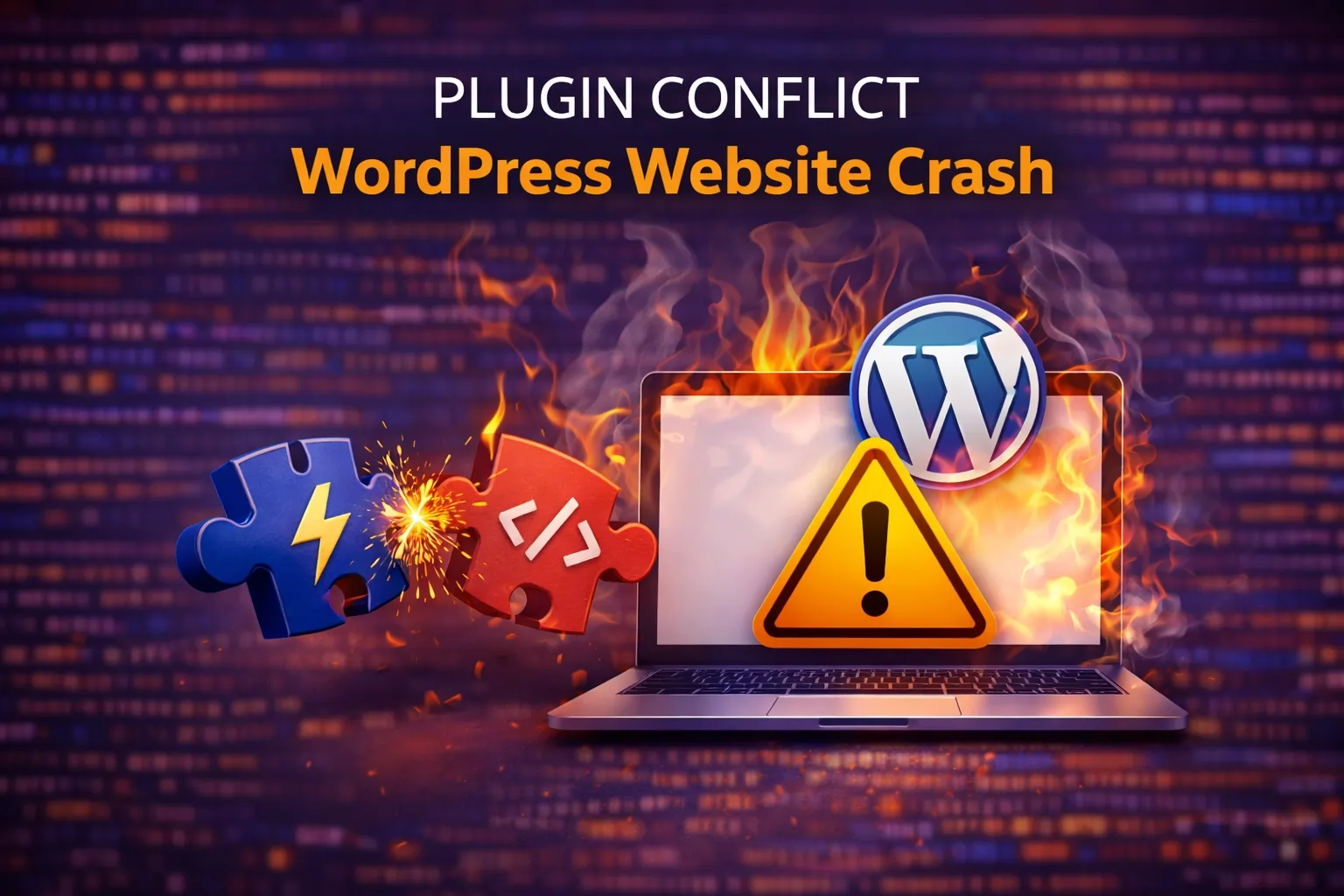
Plugin conflicts are one of the most common causes of WordPress crashes.
If you can access your WordPress dashboard:
- Go to Plugins → Installed Plugins
- Select all plugins
- Click Deactivate
If the site loads again, reactivate plugins one by one to find the plugin causing the issue.
If you cannot access your dashboard, you can disable plugins using your hosting file manager or FTP.
🎨 2. Switch to a Default Theme
A broken theme can also prevent WordPress from loading.
Switch your theme to a default WordPress theme such as:
- Twenty Twenty-Four
- Twenty Twenty-Three
- Twenty Twenty-Two
If your website loads normally after switching themes, your original theme is likely causing the issue.
🧠 3. Increase the PHP Memory Limit
Low memory allocation can prevent WordPress from running properly.
You can increase the memory limit by editing your wp-config.php file:
define('WP_MEMORY_LIMIT', '256M');
⚙ 4. Check Your .htaccess File
A corrupted .htaccess file can prevent your website from loading.
To test this:
- Rename the .htaccess file
- Refresh your website
- If the site loads, regenerate the file by going to Settings → Permalinks → Save
🧪 5. Enable WordPress Debug Mode
Debug mode allows WordPress to display detailed error messages.
define('WP_DEBUG', true);
This helps identify exactly what is causing the problem.
🦠 Check for Malware or Security Issues
If your website was recently hacked or infected with malware, it may prevent WordPress from loading.
Running a malware scan and removing malicious code can restore your website.
If your website is completely down, you may need professional help. Check out our WordPress emergency repair service for fast fixes.
💡 Pro Tip: Prevent WordPress Website Loading Issues
To prevent your WordPress website from not loading in the future:
- Keep plugins and themes updated
- Use high-quality plugins only
- Choose reliable hosting
- Regularly back up your website
⚡ When to Call a WordPress Repair Expert
If the issue continues after trying these troubleshooting steps, the problem may involve deeper server configuration issues, database corruption, or security problems.
Our WordPress repair experts can diagnose and restore your website quickly.
🔧 Fix My WordPress Website Now →
❓ Frequently Asked Questions
Why is my WordPress website not loading?
Common causes include plugin conflicts, theme errors, server configuration issues, low PHP memory limits, or corrupted WordPress files.
Can a plugin cause a WordPress site to stop loading?
Yes. A faulty or outdated plugin can create conflicts that cause internal server errors or prevent the website from loading.
How do I fix a WordPress site that won’t load?
You can fix the issue by disabling plugins, switching themes, increasing PHP memory limits, repairing the .htaccess file, or enabling debug mode to identify errors.
Can hosting problems cause WordPress not to load?
Yes. Server outages, misconfigured hosting environments, or insufficient resources can prevent WordPress websites from loading properly.
✔ Final Thoughts
A WordPress website that won’t load can be alarming, but most issues can be resolved with systematic troubleshooting.
By checking plugins, themes, memory limits, and configuration files, most websites can be restored quickly.
If you need expert help, WordPress Repair Pro can diagnose and repair your website fast.
Category: WordPress Repair Guides