How to Fix “There Has Been a Critical Error on This Website” in WordPress (Step-by-Step Guide)
Seeing the message “There has been a critical error on this website” in WordPress? Don’t panic — this is a common issue that can usually be fixed quickly.
This error typically happens due to plugin conflicts, theme issues, PHP errors, or malware infections. In this guide, we’ll walk you through exactly how to fix it step-by-step.
If your site is completely down and you need a fast fix, you may need a professional WordPress repair service to restore your website immediately.
⚠ What Does “Critical Error on This Website” Mean?
This error occurs when WordPress encounters a fatal PHP error that prevents your website from loading properly.
Instead of displaying your website, WordPress shows a generic error message to protect sensitive information.
This can affect:
- Your entire website
- Your WordPress admin dashboard
- Specific pages or functions
🔎 Common Causes of the WordPress Critical Error
- Plugin conflicts
- Broken or outdated themes
- PHP memory limits
- Corrupted WordPress files
- Malware or hacked website
If your issue started after installing a plugin, check this guide on fixing WordPress plugin problems .
🚀 Quick Fixes for the Critical Error
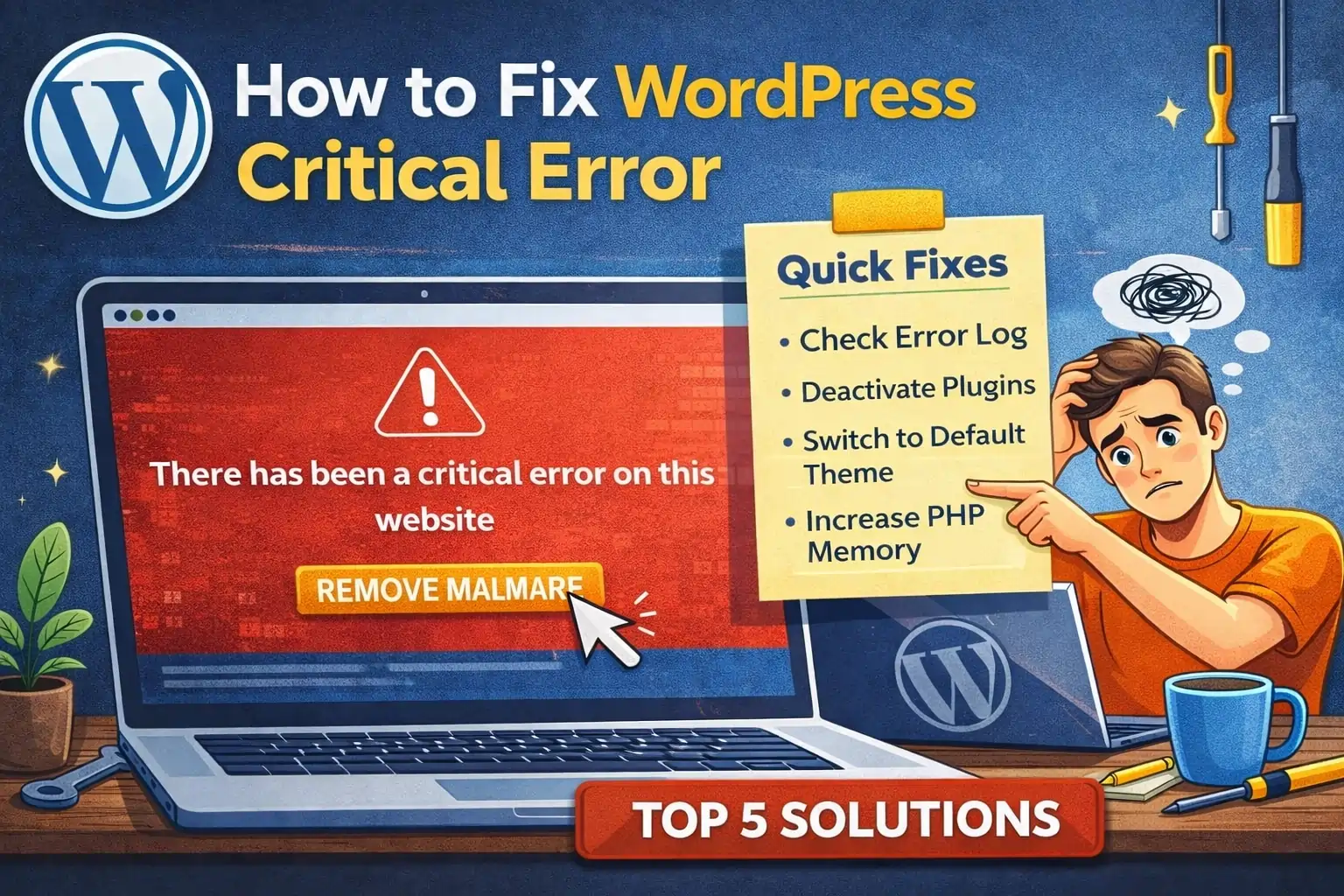
Here are the most effective ways to fix the issue quickly:
- Check your error logs
- Deactivate all plugins
- Switch to a default theme
- Increase PHP memory limit
🔌 1. Deactivate All Plugins
Plugin conflicts are the most common cause of this error.
- Access your site via FTP or File Manager
- Go to /wp-content/plugins/
- Rename the plugins folder
- Reload your website
If your site works again, reactivate plugins one at a time.
—🎨 2. Switch to a Default Theme
A broken theme can trigger the critical error. Switch to a default WordPress theme like Twenty Twenty-Four.
—🧠 3. Increase PHP Memory Limit
define('WP_MEMORY_LIMIT', '256M');
This helps prevent crashes caused by low memory.
—📄 4. Enable Debug Mode
define('WP_DEBUG', true);
This will show the actual error message so you can identify the issue.
—🦠 Check for Malware or Hacked Website
If your website was hacked, malware may be causing the error.
Follow our guide on removing malware from WordPress or fixing redirect malware .
—⚡ Website Still Not Loading?
If your site is still down, check this guide on fixing a WordPress website that is not loading .
If you see a blank screen instead, follow this guide on fixing the WordPress white screen of death .
If your issue is database-related, check: fix database connection errors .
—🚨 Need Your WordPress Website Fixed FAST?
We fix critical errors, malware, crashes, and broken websites quickly and securely.
 🚀 Fix My WordPress Website Now
✔ Final Thoughts
The “There has been a critical error on this website” message can be frustrating, but it’s usually fixable with the right steps.
By disabling plugins, switching themes, increasing memory, and checking for malware, you can restore your site quickly.
If you need help, professional WordPress repair services can fix the issue safely and fast.