🛠️ How to Fix WordPress 500 Internal Server Error (Step-by-Step Guide)
Is your WordPress website showing a 500 Internal Server Error? This is one of the most common and frustrating WordPress issues that can completely break your website.
Quick Answer: To fix the WordPress 500 Internal Server Error, disable plugins, check your .htaccess file, increase PHP memory limits, and review server logs.
The 500 Internal Server Error usually indicates a server misconfiguration, plugin conflict, or corrupted file preventing your website from loading properly.
⚠ What Is a 500 Internal Server Error?
A 500 Internal Server Error means something went wrong on your web server, but the server cannot specify the exact problem.
This error can cause:
- ⚠ Blank white screen
- ⚠ Website not loading
- ⚠ Internal server error message
- ⚠ Broken functionality
If your website is completely down, you may also want to check our guide on WordPress website not loading issues.
🔎 Common Causes of the WordPress 500 Error
- 🔌 Plugin conflicts
- ⚙ Corrupted .htaccess file
- 🧠 Low PHP memory limit
- 🗂 Corrupted WordPress files
- 🌐 Hosting/server issues
🚀 Step-by-Step: How to Fix the WordPress 500 Error
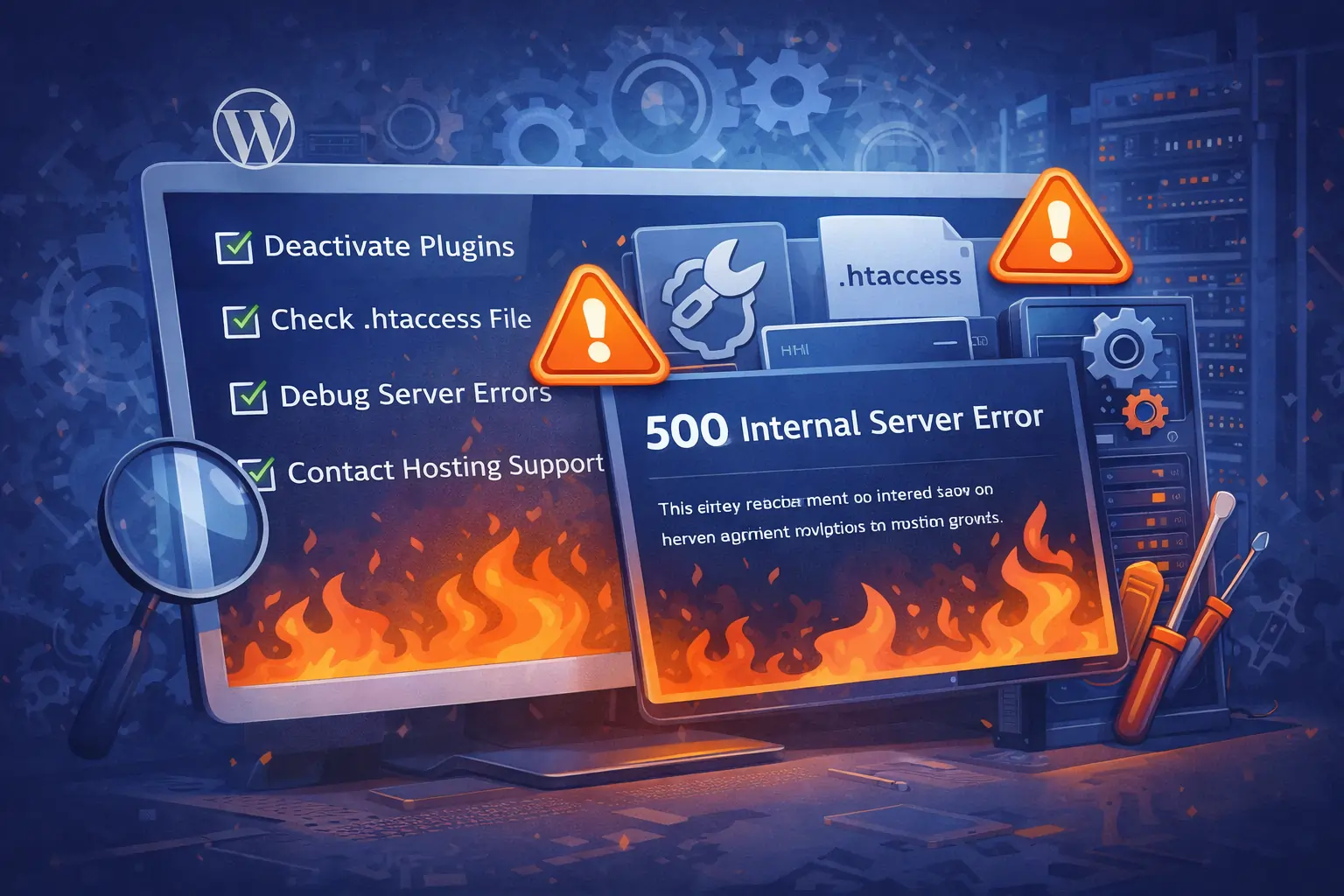
1. Disable All Plugins
Plugin conflicts are the most common cause of this error.
- Go to Plugins → Installed Plugins
- Select all plugins
- Click Deactivate
If your site works again, reactivate plugins one by one to find the issue.
2. Fix Your .htaccess File
A corrupted .htaccess file can trigger a 500 error.
- Rename your .htaccess file
- Refresh your website
- Go to Settings → Permalinks → Save to regenerate
3. Increase PHP Memory Limit
define('WP_MEMORY_LIMIT', '256M');
This helps prevent crashes caused by low server resources.
4. Enable Debug Mode
define('WP_DEBUG', true);
This helps identify the exact error causing the issue.
📋 Quick Fix Checklist
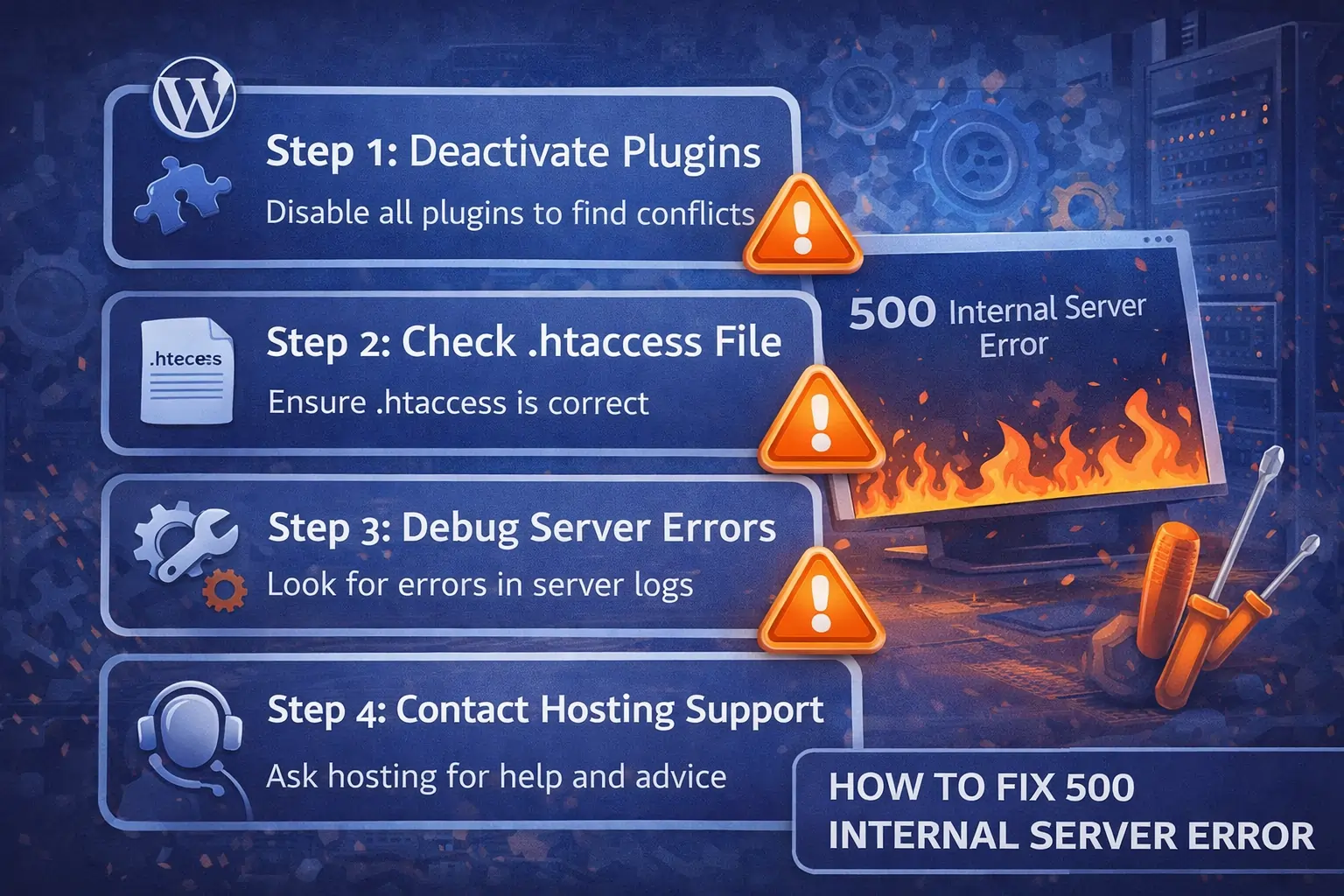
- ✔ Disable plugins
- ✔ Check .htaccess file
- ✔ Increase PHP memory
- ✔ Enable debug mode
- ✔ Contact hosting provider
⚡ When to Call a WordPress Repair Expert
If the issue continues, it may involve deeper server or configuration problems.
Our WordPress experts can quickly diagnose and repair your website.
🔧 Need Help Fixing Your WordPress Website?
Our experts can fix plugin conflicts, server errors, malware issues, and broken websites fast.
Fix My WordPress Website Now →
❓ Frequently Asked Questions
What causes a 500 Internal Server Error in WordPress?
It is usually caused by plugin conflicts, corrupted files, server misconfiguration, or low memory limits.
How do I fix a WordPress 500 error?
Disable plugins, fix the .htaccess file, increase memory limits, and enable debug mode.
Can hosting issues cause this error?
Yes. Server problems or misconfigurations can trigger a 500 Internal Server Error.
✔ Final Thoughts
The WordPress 500 Internal Server Error may seem serious, but it can usually be fixed with simple troubleshooting steps.
If you need fast help, WordPress Repair Pro can diagnose and fix your website quickly.
Category: WordPress Repair Guides